Showing posts with label sharepoint. Show all posts

Sunday, March 17, 2013

Building SharePoint 2013 Development Environment (3/4)

Refer to the 2 previous post about Building SharePoint 2013 Development Environment (1/4) and Building SharePoint 2013 Development Environment (2/4) I'll continue blogging for the next step.

This step is to install SharePoint prerequisite, SharePoint binary file and run SharePoint configuration wizard to make the SharePoint running.

For some who experienced with SharePoint 2010 installation process. This step will be similar with the previous version but it requires additional prerequisite software according to new feature that related with "SharePoint App" development and cloud service.

 First of all, I downloaded the following SharePoint prerequisite software listed below.


Microsoft also provide PowerShell script for download and install SharePoint 2013 prerequisite on Windows Server 2012 just download the PowerShell script and run them on the server.

After installed all prerequisite software then run the SharePoint preparation tool. The server is required to be restarted one time after that you run SharePoint installation without run the preparation tool again.

You can find The steps of SharePoint 2013 binary installation then make sure you've checked the run SharePoint configuration wizard on the last step.

After the SharePoint configuration wizard was completed. It'll open the SharePoint central administration page. you can continue to create a new web application and start playing around with the new feature of the SharePoint 2013.

Let's see the next post about the last step of SharePoint 2013 development environment set up.

Thursday, March 7, 2013

Building SharePoint 2013 Development Environment (2/4)

Refer to the previous post Building SharePoint 2013 Development Environment (1/4). I've described the steps to build a SharePoint 2013 development environment. Let's continue on the SQL Server installation.

Before starting install SQL Server 2012. You should install .Net 3.5 framework. If not you will get this error message and SQL management studio and database engine will not be installed.


Unfortunately, Windows server 2012 doesn't install .Net 3.5 framework automatically. 
To install .Net 3.5 framework I follow this blog How to install .NET Framework 3.5 on Windows Server 2012

The step to install are mount Windows Server iso file to your VM then run this command

dism /online /enable-feature /featurename:NetFX3 /all /Source:d:\sources\sxs /LimitAccess

where your windows server installation iso are mounted on d:\ drive
After run the above command you will see the .Net 3.5 was installed then you can continue on the SQL installation process.


I've upload the scree shot of SQL Server 2012 installation step with this link

I use only 1 service account name sp\sqlservice to run all SQL service.

Let's continue on SharePoint Server 2013 on the next post.


Wednesday, March 6, 2013

Building SharePoint 2013 Development Environment (1/4)


Microsoft released the RTM version of Microsoft SharePoint 2013 already. In this version, there're service hosted provided by Microsoft on the cloud called some developer can use "Napa" to develop their solution in the cloud. but there're still plenty of client especially in my country still willing to use on premise solution. So There's no doubt that you will need a development environment to develop, migrate, and test before deploy into the latest SharePoint.

Microsoft SharePoint 2013 comes with Hardware and software requirements for SharePoint 2013
for the test environment you must have at least

  • 8GB of RAM
  • x64 of CPU 4 cores
  • and at least 80 GB of system drive
I've installed a single server on my VM with 4GB of ram trust me, it's totally crazy. It spends time on every click you made. So i'd recommend to follow the hardware requirements from the technet.

Next are prerequisite software, I download the evaluation software from Microsoft listed below.
  1. Windows Server 2013
  2. SQL Server 2012 SP1 x64
  3. SharePoint Server 2013
  4. SharePoint Designer 2013
  5. Visual Studio Ultimate 2012 90-day trial
  6. Office 2013 Professional Plus
There're also additional software for SharePoint prerequisite. I download them from this technet blog

After a long wait all files are complete and ready to install.
The step to install this environment are
  1. Install Windows Server
  2. Rename server, Set Locale, Disable Loopback check and set User Account Control.
  3. Set network adapter and assign ip address
  4. Add ADDS role and promote new forest and domain.
  5. Create new domain user for SharePoint and SQL service
  6. Install SQL Server 2012
  7. Install SharePoint 2013 prerequisite
  8. Install SharePoint 2013
  9. Install Visual Studio 2012
  10. Install Office 2013 Professional Plus
  11. Install SharePoint Designer
There's a long long step to get this VM ready. I'd recommend to take a snapshot of your VM on some complicated step then your can roll back if something goes wrong.

To install Windows Server on the VM you just do a few click then the installation process is ready. I'll skip to the next step add ADDS role and promote new forest and domain you can follow the screenshot at this link

What Microsoft always told about the best practice for SharePoint installation is you should create separate service account for difference service responsibility. I agree with them but the question from the server administrator comes out "How many account you want for SharePoint farm?" 16!!

In this scenario I'll create 4 service account one for SQL and the rest for SharePoint

  • SQL Service account runs every sql service (DB, SSRS, SSIS, SSAS)
  • SharePoint Farm runs farm service
  • SharePoint Service runs all SharePoint service applications
  • SharePoint App runs all SharePoint application pools


Let's continue on the SQL 2012 set up in the next post.

Tuesday, July 10, 2012

Replace Delegate Control – SmallSearchInputBox

I've got a task to change the OOTB SharePoint search box control and I found this links is useful to customize it and prevent the search results keyword from "This site scope"

http://sharepointroot.com/2011/05/25/replace-sharepoint-delegate-control-smallsearchinputbox/

First step is to register the search box assembly to the master page files.

<%@ Register Tagprefix="SharePointWebControls" Namespace="Microsoft.SharePoint.Portal.WebControls" Assembly="Microsoft.Office.Server.Search, Version=14.0.0.0, Culture=neutral, PublicKeyToken=71e9bce111e9429c" %>

Then Replace SharePoint controls search box which is the syntax like this
SmallSearchInputBox" Version="4"/>

With this one


The search box property can be found on MSDN reference link here

Hope this helps,
PJ

Monday, July 2, 2012

The SharePoint item being crawled returned an error when requesting data from the web service.

When using FAST search for SharePoint 2010 (F4SP) to crawl a content source that contains managed metadata in the field you might get this error

The SharePoint item being crawled returned an error when requesting data from the web service. ( Error from SharePoint site: *** Index was outside the bounds of the array. )

this is because one or more metadata field is filled with incorrect value. When you open it up it show something like this.


The red underline text means there's no term "Knowledge" in the Knowledge Themes metadata field.
if you leave this red text save in your item properties and run a crawling. You will get this error.

To solve this error
That's simple, correct the red underlined text in metadata field. then FAST search will crawl this item correctly.

Tuesday, May 29, 2012

Make connection string from web.config

in your web application you can add the below line to read data configuration in web.config file

DataClassesDataContext lu = new DataClassesDataContext(System.Configuration.ConfigurationManager.ConnectionStrings["LikeWebPartDataConnection"].ConnectionString);

and add below line in appSettings section in web.config files
   

Wednesday, May 9, 2012

Enable Fast Search feature on SharePoint Publishing Site

Refer to
http://social.technet.microsoft.com/Forums/en-US/fastsharepoint/thread/d83894e3-fc7c-40e4-99ab-7ac1a5392265

I got the solution to enable FAST search site template for Publishing site with just one command

Enable-SPFeature –Id SearchExtensions –url


Hope this helps

Thursday, April 19, 2012

Clear-FASTSearchContentCollection : Failed to communicate with the WCF service.

According to this title error when clear fast search index using PowerShell command.
Clear-FASTSearchContentCollection -Name sp
and I got this error
Failed to communicate with the WCF service.
then i changed user account to run this command by Shift + Right Click on FAST Search

Then log on as FAST service account to run this command instead of current account.


Hope this helps.

Friday, December 2, 2011

XSLT on search results page


I spent a lot of time to solve why the value from managed property in Search results page doesn't appear in my XSLT template.
I just figured it out that xslt variable must be declared with the exactly same name with the managed property.

How stupid I'm.


Thursday, December 1, 2011

SharePoint Designer component for Drag N Drop and Office List support component

Many users wants to upload by drag and drop but it's not possible without SharePoint Foundation Component in SharePoint Designer setup package file.


There're 2 components requires for users who want to experience full functionality about SharePoint List.


  • Microsoft Access Web Datasheet Component: this component enable access like view and editing experience on SharePoint list.
  • Microsoft SharePoint Foundation Support: Enable multiple upload capability for your IE. don't forget to enable ActiveX control to enable this function also.

Thursday, November 24, 2011

FAST Crawling Error HRESULT E_FAIL has been returned from a call to a COM component.

I got an error while start crawling from my content source by FAST Crawl
the crawl log said "Error HRESULT E_FAIL has been returned from a call to a COM component."

then I found an solution from the below link which is change the impersonate value in target content source web.config

http://www.sharepointben.com/blog/Lists/Posts/Post.aspx?ID=463

then rerun the crawling and it works.

but beware of the web.config impersonate value. if your web application is needed to be set to false. it gonna be an issue with your search component.

I got an idea for around on this. Let me take time to prove it and I'll update the result.

Tuesday, November 22, 2011

from my recently post download SharePoint patch
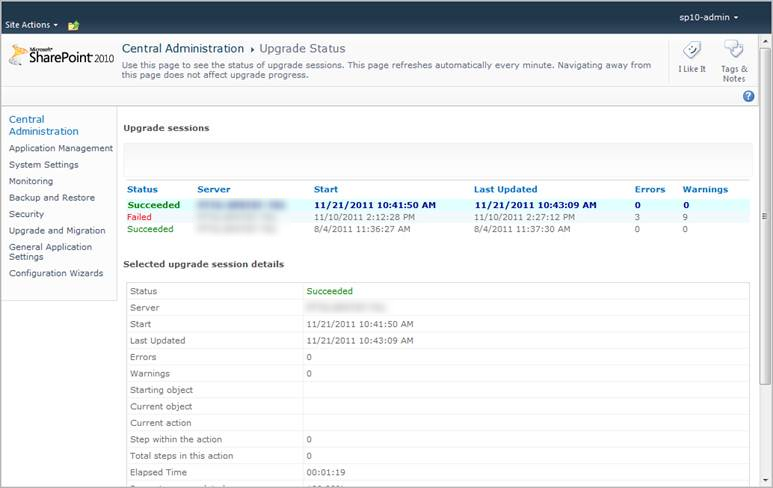
I've got an failure update content database on my SharePoint server farm shown with below picture.

I searched for the solution and found some recommendation from the Microsoft websites

then I checked the PSConfig.exe log file and found some clue why my upgrade was failed.

[OWSTIMER] [SPContentDatabaseSequence] [ERROR] [11/10/2011 2:23:08 PM]: Found a missing feature Id = [a18927ed-93e2-4dcb-be6d-56c469beb929]
[OWSTIMER] [SPContentDatabaseSequence] [ERROR] [11/10/2011 2:23:08 PM]: The feature with Id a18927ed-93e2-4dcb-be6d-56c469beb929 is referenced in the database [MYContentDatabase], but is not installed on the current farm. The missing feature may cause upgrade to fail. Please install any solution which contains the feature and restart upgrade if necessary.

the log file said, there's a missing custom feature i had deployed on MyContentDatabase. So I retracted and remove my custom solution and run this command to upgrade the content database again
psconfig -cmd upgrade -force -inplace v2v -passphrase < passphrase > -wait


the command will upgrade my content database then I redeploy my solution into the content database again.

Download and Update patch on SharePoint Farm

Microsoft has been released SharePoint 2010 patch update for a while refer to the following links.

then I downloaded the SP1 and August CU updates from the above site. Service Pack1 for many products

  1. Documentum Search connector SP1
  2. FAST Search for SharePoint SP1
  3. FAST Search for SharePoint August CU
  4. Office Web Apps SP1
  5. SharePoint August CU
  6. SharePoint SP1
  7. SharePoint Designer SP1
All of their size around ~2GB. the SharePoint August CU size is about 1GB. I though there's a lot of bug in SharePoint.

Tuesday, September 20, 2011

FAST Search Managed Metadata Problem

I've got a Problem with the number of Managed properties doesn't correct because of multiple value in crawled properties mapped with managed properties.
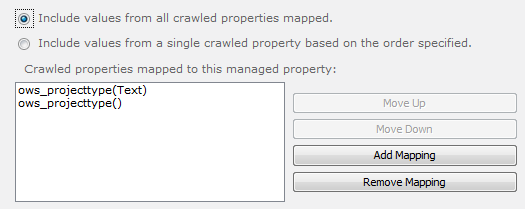
the results should be 249 for Content Types and at least 249 for Project Type because Project Type properties in mandatory field and allow multiple value. the the sum of Project type is just 230. There's something wrong with the managed properties, I though. Finally, I found the solution. Many thanks to the following links and Google. http://fs4sp.blogspot.com/2011/04/multi-valued-managed-properties-as.html http://blogs.pointbridge.com/Blogs/tseng_william/Pages/Post.aspx?_ID=14 http://msdn.microsoft.com/en-us/library/ff625183.aspx http://technet.microsoft.com/en-us/library/ff393811.aspx I didn't map the ows_projecttype() with my managed properties ProjectType.
After mapped with the correct crawl properties and rerun full crawl. it works.

Thursday, September 15, 2011

User Profile Sync Replicate Access Denied 8453

I've a change to sync 7 Domains with approx 30k users account. follow user profile sync for SharePoint on technet http://technet.microsoft.com/en-us/library/ee721049.aspx
but there's a domain it's domain name doesn't match with user account domain. So, I've to enable NETBIOSDomainNamesEnabled to true
But it still doesn't work. it still error with replicate access denied. Finally, I've found another solution for this challenge. 1.uncheck all directory partition in Configure Directory Partition in AD Connection. only one left.
2.Check Configure Run Profile, does it has only one step. if not, remove all other step.
Then run full sync again and it works. Hope this post helps saving you time.